 Panelize
 › Add custom AI & API
How to add custom AI websites and OpenAI-compatible APIs to Panelize
Short answer: in Panelize 2.2+, click + in the Multi-Panel toolbar and pick Add custom AI / More providers… (or open Settings → Add custom AI) to add Perplexity, Mistral Le Chat, Poe, Open WebUI, local Ollama or OpenRouter, then compare them side by side with ChatGPT, Claude and Gemini in one window—no API keys needed for websites, and zero CORS setup for Ollama.
Panelize ships with 13 built-in AI chat services plus Google AI Mode out of the box (ChatGPT, Claude, Gemini, Grok, DeepSeek, Kimi, Qwen China & Global, Doubao, Zhipu, Z.ai, Yuanbao, Google AI Studio and Google AI Mode). Starting in version 2.2, you can extend that lineup with almost any web chat interface or OpenAI-compatible endpoint—and mix all three connection types in the same layout.
Part 1: Add almost any AI website in 30 seconds (AI Website mode)
Use AI Website mode when you want to embed a public AI chat or search site with your normal browser login—just like Panelize's built-in panels, with no API keys or extra per-token billing.
- In the Panelize Multi-Panel toolbar, click + and select Add custom AI / More providers… (or open Settings → Add custom AI).
- Choose AI Website.
- Click a quick-fill preset or paste the chat URL (see the copy-paste recipes below), then click Add.
- Approve Chrome's single-domain access prompt (Panelize requests host access only for the exact origin you add).
- If the site requires an account, sign in once in a regular browser tab, reload the panel, and click Send All to compare it side by side with ChatGPT, Claude or Gemini.
| Service | Mode | Copy-paste URL | Best used alongside ChatGPT / Claude for |
|---|---|---|---|
| Perplexity | AI Website | https://www.perplexity.ai | Live web citations and source verification |
| Mistral Le Chat | AI Website | https://chat.mistral.ai | Fast Mistral Large / Codestral responses on free or Pro login |
| Poe | AI Website | https://poe.com | Running custom bots and multi-provider Poe subscriptions |
| HuggingChat | AI Website | https://huggingface.co/chat | Testing open-weight models in a hosted web UI |
| muse.ai (Meta Muse) | AI Website | https://muse.ai | Meta's AI (Meta Muse) web chat alongside ChatGPT and Claude |
| Metaso | AI Website | https://metaso.cn | Structured bilingual & Chinese research search |
Part 2: Embed local or self-hosted chat UIs (Local / Self-hosted Web mode)
Running your own chat frontend on your workstation, home server or internal team domain? Pick Local / Self-hosted Web in the Add custom AI card in Settings. Plain http:// is allowed for localhost, 127.0.0.1 and private LAN IP ranges (192.168.x.x, 10.x.x.x, 172.16.x.x–172.31.x.x), while remote team deployments use https://.
| Self-hosted UI | Typical URL | Notes |
|---|---|---|
| Open WebUI | http://localhost:3000 | Full local RAG, Pipelines and Ollama/OpenAI workspace UI inside a Panelize panel |
| LobeChat | http://localhost:3210 | Self-hosted agent and plugin UI (localhost or HTTPS team deployment) |
| LibreChat | http://localhost:3080 | Multi-user self-hosted chat portal on localhost, private LAN IP or team HTTPS domain |
| Dify Web Apps | http://localhost or https://... | Embed published Dify chatflow/agent web apps directly next to frontier models |
Part 3: Connect local models & OpenAI-compatible APIs (OpenAI-compatible API mode)
When you want to benchmark raw models, run local weights on your GPU/Apple Silicon, or compare open-weight models on OpenRouter and DeepSeek API without leaving your browser, choose OpenAI-compatible API:
- Open + → Add custom AI / More providers… (or Settings → Add custom AI) and select OpenAI-compatible API.
- Paste the Base URL (such as
http://localhost:11434/v1) or full/chat/completionsURL. - Enter an API Key if the provider requires one—or leave it blank for local servers like Ollama and LM Studio.
- Click Load models to auto-fetch available model IDs from the server's
/modelsendpoint (or type any model ID manually), then click Add and approve Chrome's host access prompt.
Zero CORS setup for local Ollama: Ollama's defaultOLLAMA_ORIGINSsetting rejectschrome-extension://origins with HTTP 403; Panelize handles this automatically via a scopeddeclarativeNetRequestrule on your approved localhost port, sohttp://localhost:11434/v1works out of the box with default Ollama settings.
| Provider | Base URL | API Key | Model Selection |
|---|---|---|---|
| Magpie (Local Gateway) | http://127.0.0.1:3425/v1 | Leave blank or magpie (loopback trusted) | Click Load models to pick any routed model |
| Ollama (Local) | http://localhost:11434/v1 | Leave blank (zero CORS setup) | Click Load models (e.g. qwen3, deepseek-r1, llama4) |
| LM Studio | http://localhost:1234/v1 | Optional (blank by default) | Click Load models while server runs |
| vLLM / llama.cpp | http://127.0.0.1:8000/v1 | Optional | Use Load models to pick any model from /v1/models |
| OpenRouter | https://openrouter.ai/api/v1 | sk-or-... | Click Load models to browse /api/v1/models (e.g. deepseek/deepseek-r1, llama-4) |
| DeepSeek API | https://api.deepseek.com/v1 | sk-... | deepseek-chat, deepseek-reasoner (or click Load models) |
| OpenAI | https://api.openai.com/v1 | sk-... | Use Load models to pick any model from /v1/models |
What you get in Panelize's built-in API panel
- Live streaming Markdown & code blocks: responses stream token by token with syntax-formatted code blocks and one-click copy buttons.
/modelsdiscovery & quick switching: click Load models in Settings to pick from your server's live catalog, or add multiple entries to compare two checkpoints side by side.- Image attachments: attach screenshots once from Panelize's unified Upload Images button (or inside the API panel) to test vision-capable local and cloud models.
- Strict local-only key storage: optional API keys are stored strictly on your local device in extension-origin
IndexedDB(PanelizeCustomApiSecretsDB). They are never synced via Chrome Sync, never exported in JSON settings backups, cleared automatically if you edit a provider to a different origin or remove it, and sent solely inAuthorization: Bearerheaders to your configured endpoint and its same-origin/modelsdiscovery endpoint.
How built-in sites, custom web UIs, and custom APIs compare
You can combine all three panel types in any of Panelize's 22 layouts (up to 12 panels at once). Here is what a three-way hybrid comparison looks like and what each connection mode supports:
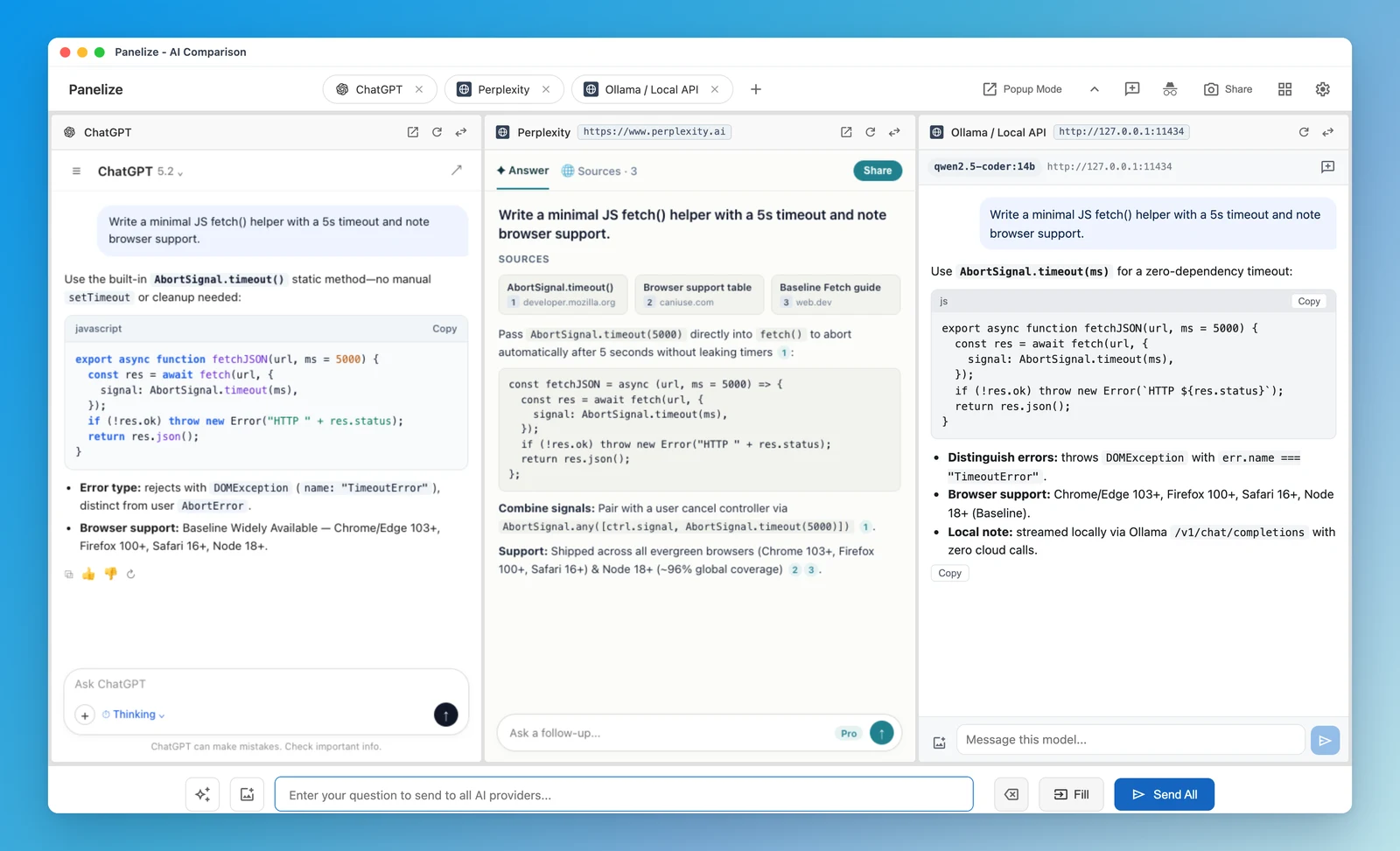
| Capability | Built-in Official Sites (13 + Google AI Mode) | Custom Web UIs (AI Website & Local / Self-hosted Web) | Custom APIs (OpenAI-compatible API) |
|---|---|---|---|
| Login & billing | Uses your existing free or paid login (ChatGPT Plus, Claude Pro, etc.); no API keys | Uses your normal browser session on that website; no API keys | Free on local servers (Ollama, LM Studio, vLLM) or pay-per-token with your own API key |
Send All & Fill | Dedicated per-site adapter | Generic input & send button auto-detection | Native Panelize streaming API client |
| Image attachments | Unified Upload Images sends to all panels | Unified Upload Images where supported, or upload inside the site's composer | Unified Upload Images + per-panel image attach |
Share image export | Current view & full-answer vertical stitching | Current view & full-answer vertical stitching | Current view & full-answer vertical stitching |
| Chat history | Saved in each provider's own account (plus 1-click Temporary Chat where supported) | Saved in that website's account or self-hosted app (plus 1-click Temporary Chat where supported) | In-memory for the active session only; nothing written to disk |
Troubleshooting & when to open an issue
- A custom website shows a login or verification screen: open that website in a normal browser tab, complete sign-in there, then click the reload icon on its Panelize panel header.
Send Alldoesn't find the input box or send button on a custom site: Panelize's generic web driver handles standard<textarea>andcontenteditablechat composers, while staying safe around non-send buttons. If a site uses an unusual shadow-DOM editor or blocks iframe embedding even after header rules apply, please open an issue on GitHub with the URL.- Local Ollama cannot connect or lists zero models: confirm Ollama is running (
ollama list) and that you have pulled at least one model (for exampleollama pull qwen3). You do not need to configureOLLAMA_ORIGINS. - Browser version requirement: dynamic custom AI framing and origin rules require Chrome or Microsoft Edge 145 or newer.
FAQ
How do I add Perplexity, Mistral Le Chat or Poe to Panelize?
Click + in the Panelize Multi-Panel toolbar and choose Add custom AI / More providers… (or open Settings → Add custom AI), select AI Website, click a quick-fill preset or paste https://www.perplexity.ai, https://chat.mistral.ai or https://poe.com, and approve Chrome's single-domain permission prompt.
Does local Ollama work in Panelize without setting OLLAMA_ORIGINS for CORS?
Yes. In OpenAI-compatible API mode, enter http://localhost:11434/v1, leave the API key blank and approve localhost access. Panelize strips the chrome-extension:// Origin header on authorized API requests via declarativeNetRequest, so local Ollama works out of the box without setting OLLAMA_ORIGINS.
Where are my OpenRouter, DeepSeek or OpenAI API keys stored?
Optional API keys are stored strictly locally on your device in extension-origin IndexedDB (PanelizeCustomApiSecretsDB). They are never synced via Chrome Sync, never included in exported JSON backups, cleared automatically on cross-origin endpoint edits or deletion, and sent solely in Authorization: Bearer headers to your configured endpoint and its same-origin /models discovery endpoint.
Can I compare ChatGPT Plus and Claude Pro side by side with Perplexity and local Ollama?
Yes. Panelize lets you mix built-in official web panels (using your normal ChatGPT Plus, Claude Pro or Gemini login), custom AI websites like Perplexity, and OpenAI-compatible APIs like Ollama or OpenRouter in the same layout and send one prompt to all of them at once.
Free, open source, no API keys required — plus custom Web & API support.
Add Panelize to Chrome