 Panelize
Panelize › Use ChatGPT and Claude together
How to use ChatGPT and Claude at the same time
Asking ChatGPT and Claude the same question is a quick way to get a second opinion, catch mistakes and pick the better draft. Here are three ways to do it, from the simplest to the fastest.
Option 1: two browser windows side by side
Open chatgpt.com and claude.ai in two windows and snap them to each half of the screen (on Windows, Win + ← / →; on macOS, hover over the green button in the window corner and choose a tile option).
Good for: an occasional comparison. Downside: you paste every prompt twice, and it gets messy past two AIs.
Option 2: an API-based multi-model app
Some apps send your prompt to several models through their APIs. They work well, but you usually need API keys or a separate subscription, and you pay per use on top of any ChatGPT Plus or Claude Pro plan you already have.
Option 3: Panelize (free, uses your logins)
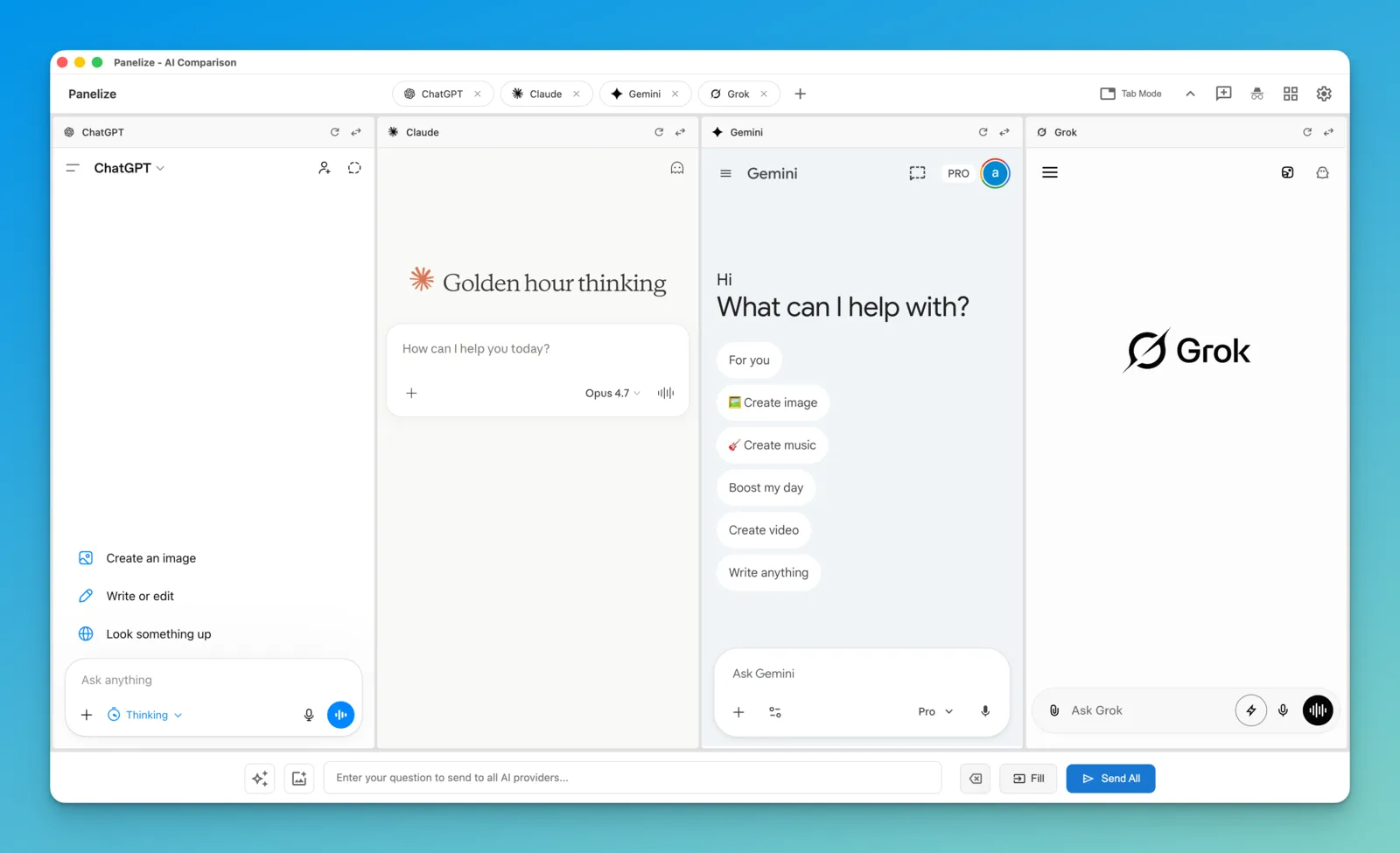
Panelize is a free, open-source Chrome extension that shows the real ChatGPT and Claude websites next to each other and sends one prompt to both. Because each panel is the official site, it uses the account you are already logged into, free or paid.
- Install Panelize from the Chrome Web Store (works in Edge too).
- Log in to chatgpt.com and claude.ai in normal tabs if you haven't already.
- Open Panelize with Cmd/Ctrl + Shift + E.
- Pick the 1×2 layout and choose ChatGPT and Claude.
- Type once in the bottom bar and click Send All. Both answers stream in side by side.
Tips
- Review before sending: Fill puts your prompt in every panel without sending, so you can adjust one panel first.
- Images: attach screenshots or photos once with Upload Images.
- From any page: select text, right-click and choose Send to Panelize.
- Start over everywhere: New Chat for All resets every panel in one click.
- Add a third opinion: switch to 1×3 and add Gemini, Grok or DeepSeek.
Troubleshooting
- A panel shows a login page: log in to that site in a regular tab, then reload the panel.
- The shortcut does nothing: check for conflicts at
chrome://extensions/shortcuts. - A provider stopped working after a site update: open an issue on GitHub.
Free, open source, no API keys.
Add Panelize to Chrome